Clipnest
Get back anything you've copied — press ⌘⇧V, pick one, and it pastes right where you were.
Clipnest is Mac-only for now — there's no Windows version yet.
Clipnest is Mac-only for now — there's no Linux version yet.
This is a Mac app — open this page on your Mac to download it.
001 / 003
Everything you've copied, in one place
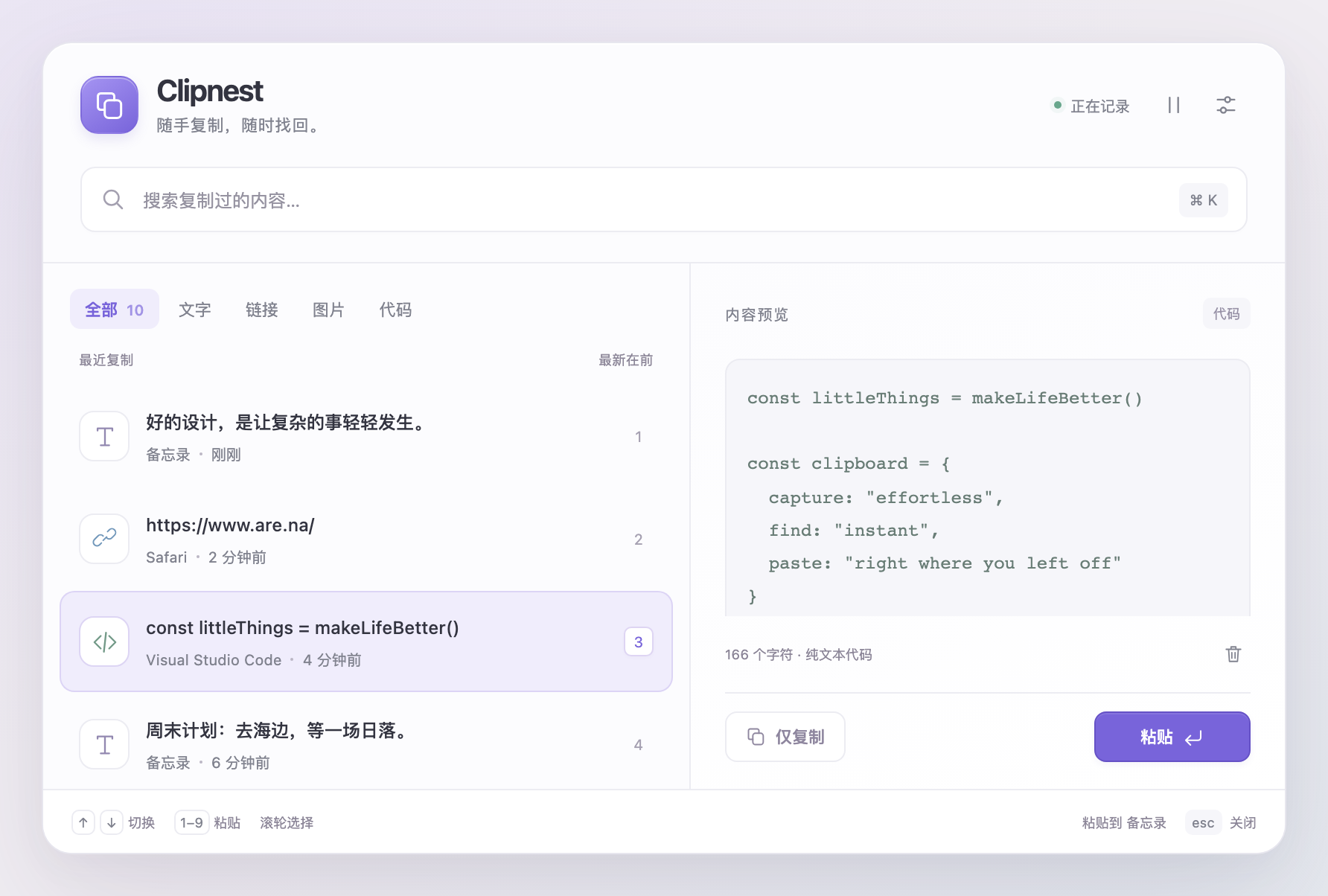
Just copy as usual — Clipnest quietly keeps track from the menu bar. When you need something, press ⌘⇧V: your recent text, links, code and images are listed newest first, each showing which app it came from and when.
 点击放大
点击放大
002 / 003
Pick one, and it pastes right back
Press 1–9 to pick instantly, or move with the arrow keys or scroll wheel and hit Return. Clipnest jumps back to where you were typing and pastes it for you — your hands never leave the keyboard.
 点击放大
点击放大
003 / 003
Can't remember? Search
Press ⌘K and type a few words to search everything you've copied, or filter to just text, links, images or code.
 点击放大
点击放大
Your privacy
Your clipboard often holds private things, so Clipnest only ever works on your own Mac.
Stays on your Mac
Your history is saved only on this computer. No account, no internet, nothing uploaded.
Passwords aren't recorded
Passwords copied from most password managers are skipped automatically and never show up in your history.
Pause any time
Pause recording before copying something sensitive, delete any single item, or clear everything at once.
It won't pile up
It keeps your 200 most recent items, and copying the same thing again just moves it back to the top.
Getting started
After installing, macOS asks you to allow Clipnest once before it can paste for you. After that, you're set.
Three steps to start
- Open the download, drag Clipnest into Applications and open it
- Copy as usual, then press ⌘⇧V wherever you want to paste
- The first time you paste, follow the prompt to turn on Clipnest in System Settings → Privacy & Security → Accessibility
This lets Clipnest press paste for you. Until then it still works — choose “Copy only”, then press ⌘V yourself.